> ## Documentation Index
> Fetch the complete documentation index at: https://docs.flexwash.com/llms.txt
> Use this file to discover all available pages before exploring further.
# Terms and Conditions
> Upload the Terms & Conditions that your customers will sign when they enroll in a membership.
### Terms and Conditions
.png?fit=max&auto=format&n=BmCPR0FRJ0vihLVV&q=85&s=08210e625278acfe7edab934831f721a) ### Terms
### Terms
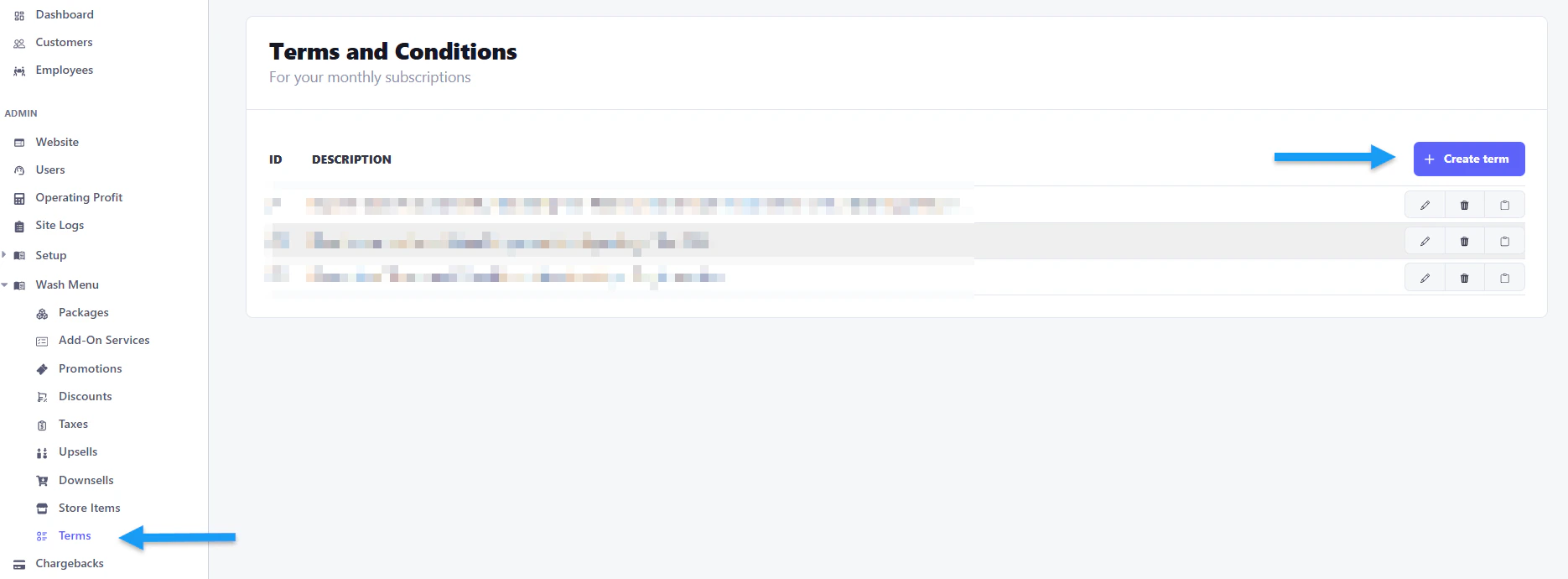 You will find the "Terms" option under the Wash Menu section of the sidebar menu located on the left. Click on the "Create Term" button to enter the text.
### Create Term
You will find the "Terms" option under the Wash Menu section of the sidebar menu located on the left. Click on the "Create Term" button to enter the text.
### Create Term
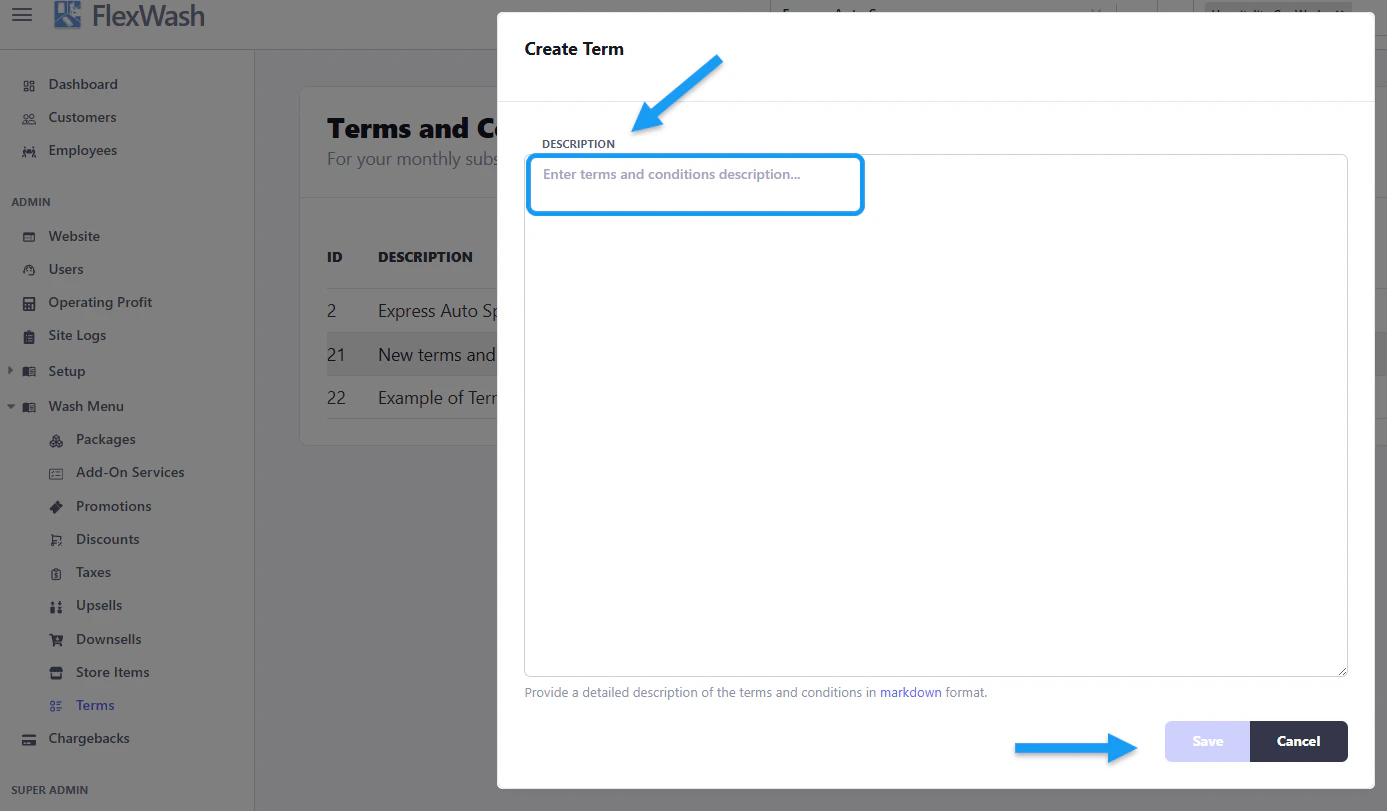 A new window will appear where you can type the text or simply paste it. Click on the "Save" button when done.
Read our ["Signed Terms and Conditions" article](https://docs.flexwash.com/memberships/signatures) if you want to learn how to find the signed Terms and Conditions on a customer's account.
### Term ID
A new window will appear where you can type the text or simply paste it. Click on the "Save" button when done.
Read our ["Signed Terms and Conditions" article](https://docs.flexwash.com/memberships/signatures) if you want to learn how to find the signed Terms and Conditions on a customer's account.
### Term ID
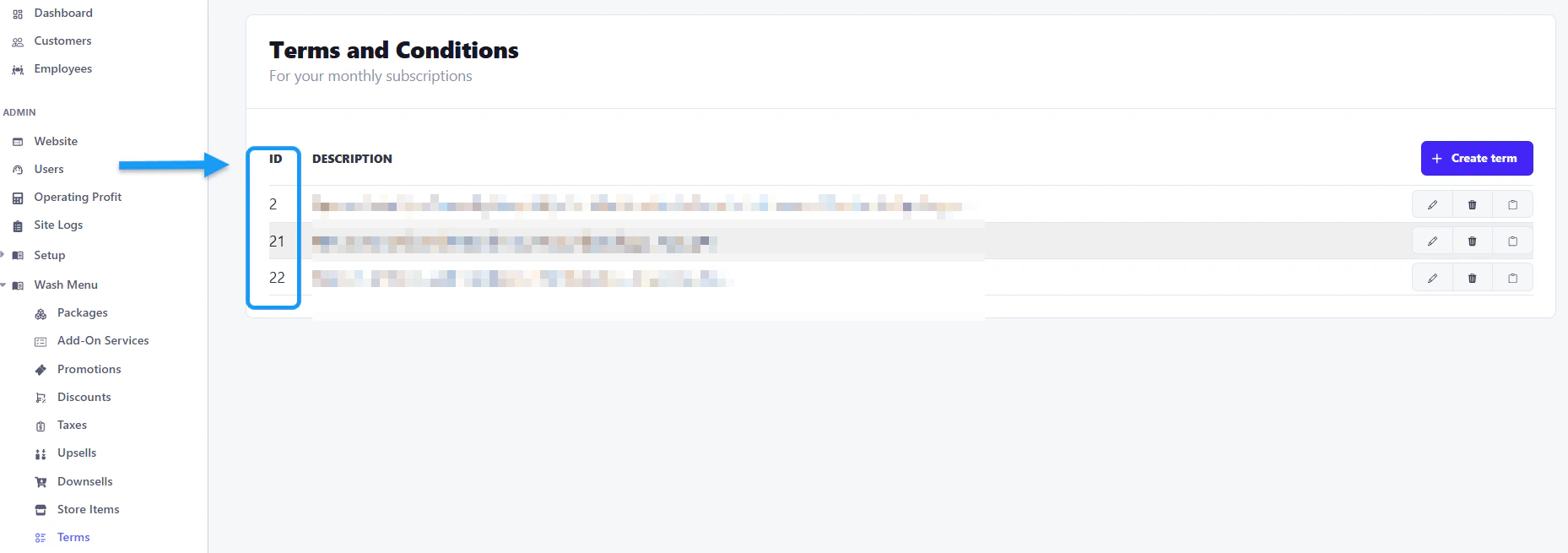 Each text you save will be assigned a numerical code as you can see on the left side in the image above.\
\
In order to apply the **Terms and Conditions** on a wash package, add that number on the "Term ID" section of the edit wash package page:
Each text you save will be assigned a numerical code as you can see on the left side in the image above.\
\
In order to apply the **Terms and Conditions** on a wash package, add that number on the "Term ID" section of the edit wash package page:
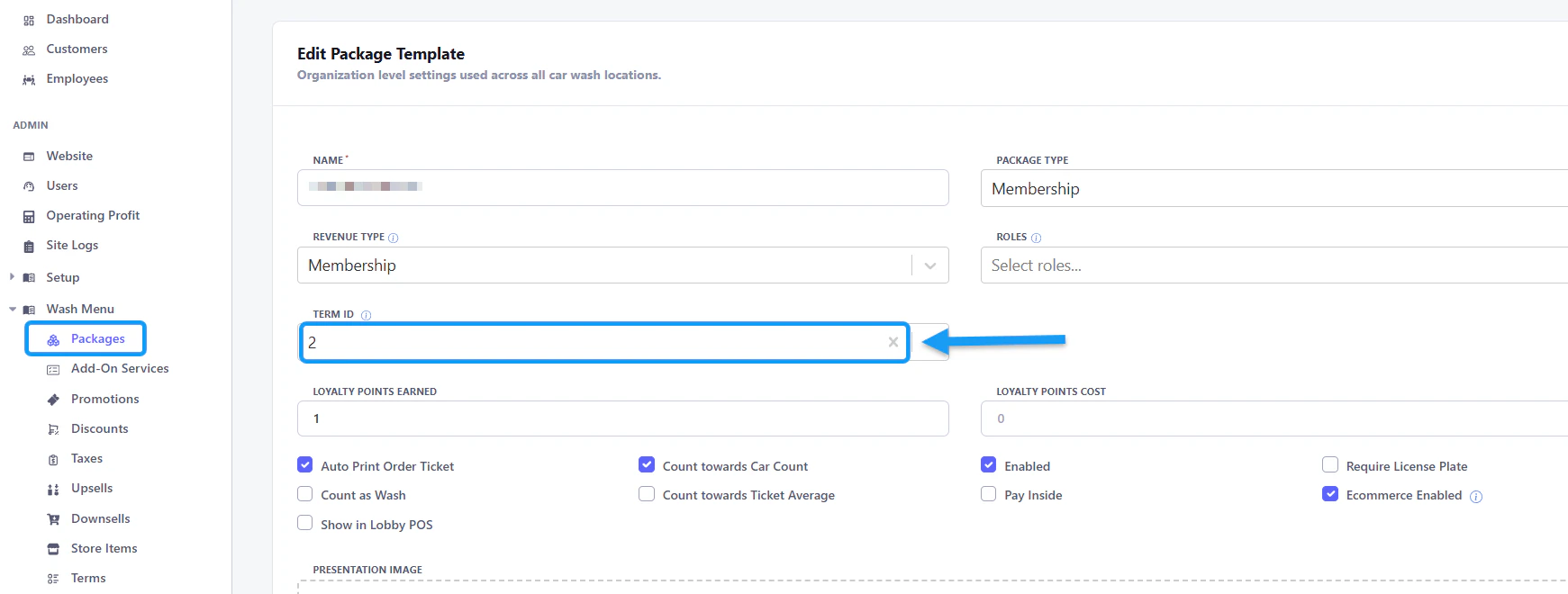 For the changes to take effect on your Pay Tablets, select the "Refresh Config" option as shown in our [Refresh Config on Pay Devices](https://docs.flexwash.com/essentials/refresh-menu) article.