> ## Documentation Index
> Fetch the complete documentation index at: https://docs.flexwash.com/llms.txt
> Use this file to discover all available pages before exploring further.
# Store Items
> These products are available for purchase within the car wash facility and include a variety of items such as beverages, snacks, and air fresheners.
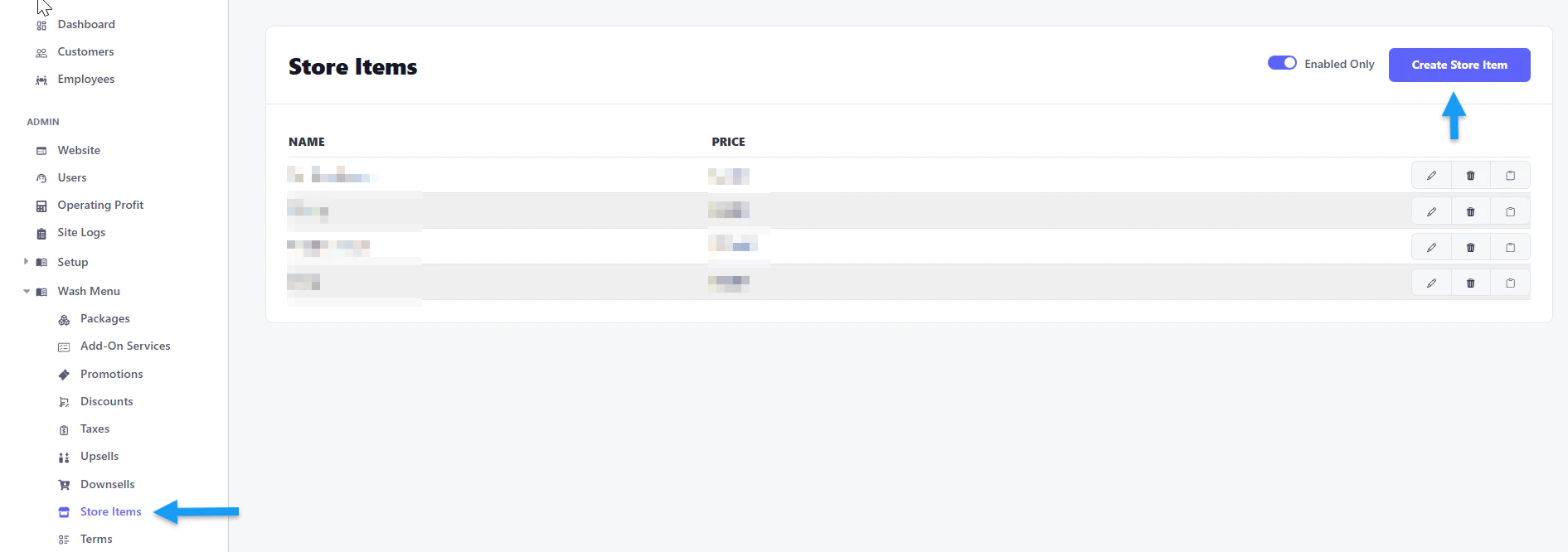
### To create a store item:
From the wash menu section, navigate to "store items" and then select "create store item."
 ### Fields:
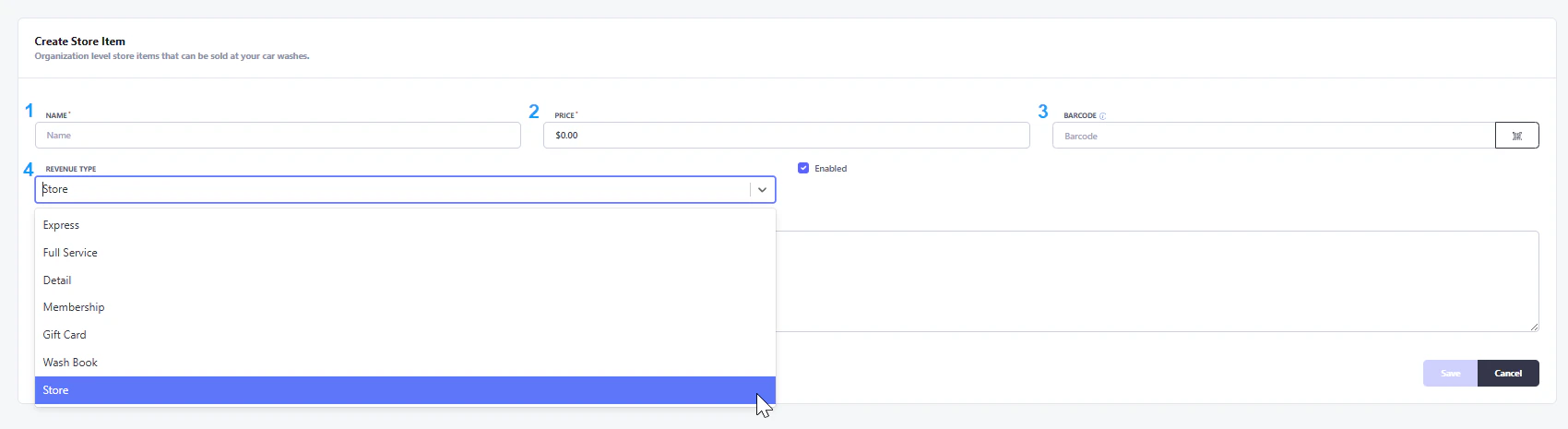
1. Name.
2. Price.
3. Barcode: You can scan a barcode or input the numerals for the item to be redeemed through the pay terminal.
4. Revenue Type: for reports only, what revenue class to report under in FlexWash.
After you have filled in all the fields, select "Save."
Check or uncheck the enable toggle to control the store item's visibility on the pay tablet.
### Fields:
1. Name.
2. Price.
3. Barcode: You can scan a barcode or input the numerals for the item to be redeemed through the pay terminal.
4. Revenue Type: for reports only, what revenue class to report under in FlexWash.
After you have filled in all the fields, select "Save."
Check or uncheck the enable toggle to control the store item's visibility on the pay tablet.