> ## Documentation Index
> Fetch the complete documentation index at: https://docs.flexwash.com/llms.txt
> Use this file to discover all available pages before exploring further.
# Single Wash Package
> We show you how to set up a new single Wash Package.
## Wash Menu
The first option on the Wash Menu section allows you to create and set up new wash packages.
 Then click on the "Create Wash Package" button.
 ## Single Wash Package
 For a single wash package, select the **"Express"** option on the **"Package type"** dropdown menu. Also select "Express" on the "Revenue Type" dropdown menu for the stats to reflect accordingly on the reports.
The "Roles" menu allows you to make the packge visible only to certain level of employees. If you leave this option empty it will appear for everyone by default.
### Other options
For a single wash package, select the **"Express"** option on the **"Package type"** dropdown menu. Also select "Express" on the "Revenue Type" dropdown menu for the stats to reflect accordingly on the reports.
The "Roles" menu allows you to make the packge visible only to certain level of employees. If you leave this option empty it will appear for everyone by default.
### Other options
 Always make sure that the **"Enabled"** option is checked here, otherwise the wash package will not appear on your Flexwash devices.\
\
Other recommended settings are "Count as Wash", "Count towards Car Count", and "Count towards Ticket Average". Check these to keep track of this wash package sales in your reports.
### Car Wash Package
Always make sure that the **"Enabled"** option is checked here, otherwise the wash package will not appear on your Flexwash devices.\
\
Other recommended settings are "Count as Wash", "Count towards Car Count", and "Count towards Ticket Average". Check these to keep track of this wash package sales in your reports.
### Car Wash Package
 After the Wash Package is created, you will find this new section on the bottom of the settings called **"Car Wash Packages".** This gives you the ability to offer different prices and other settings per site or location.
### Select Car Wash
After the Wash Package is created, you will find this new section on the bottom of the settings called **"Car Wash Packages".** This gives you the ability to offer different prices and other settings per site or location.
### Select Car Wash
 A new window will appear. Select the correct **Car Wash**.
### Create Wash Package
A new window will appear. Select the correct **Car Wash**.
### Create Wash Package
 Fill in the name, price and taxes if required on your location.
Make sure that the **"Enabled"** option is checked here as well to ensure that the wash package appears on your Flexwash devices.
## Display Order
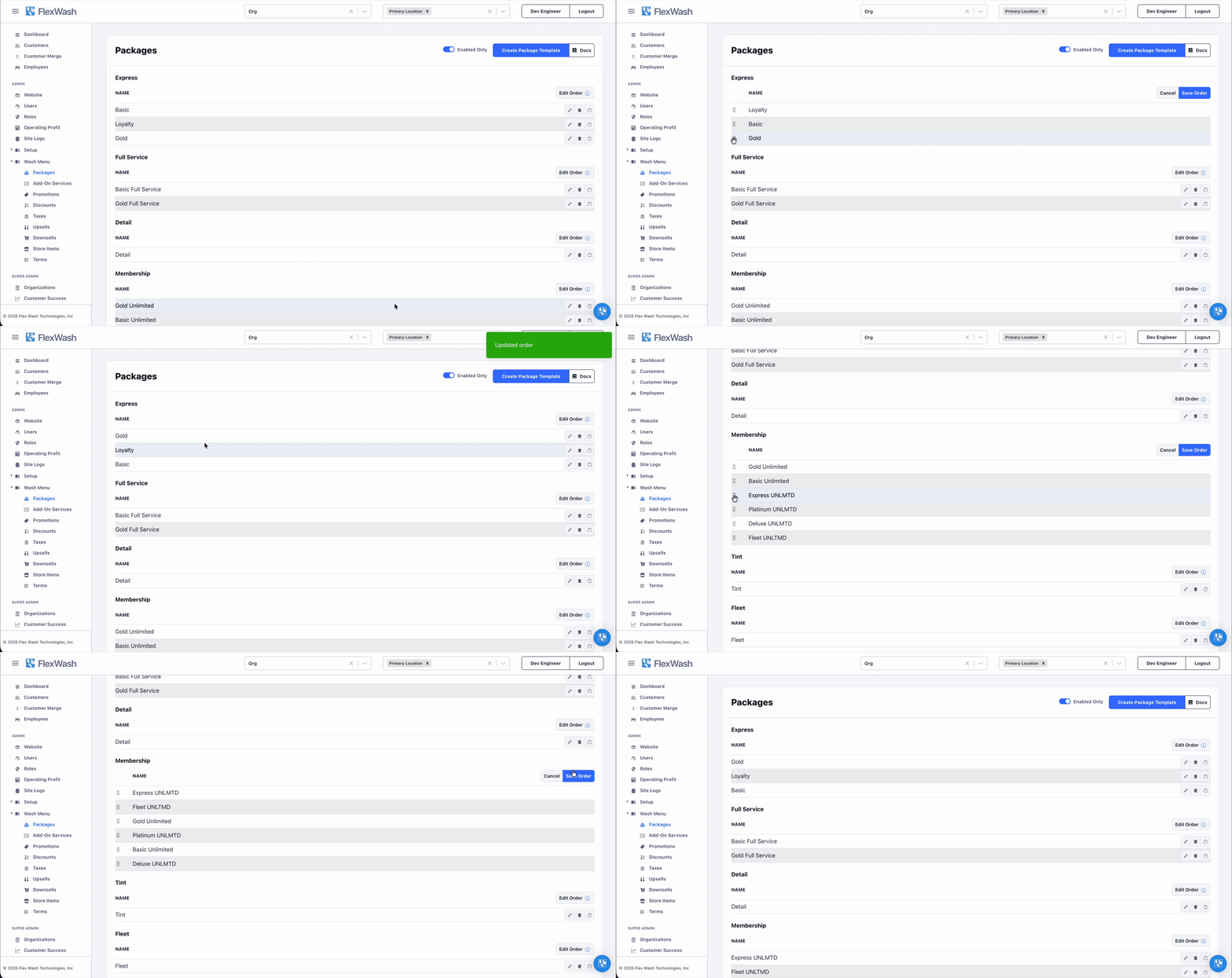
Control the order in which Wash Packages appear on the POS using the **Edit Order** feature.
On the Packages page, packages are grouped by **Package Type** (for example, Express, Full Service, Membership). Reordering works independently within each Package Type group. The groups themselves always display in a fixed order.
To change the display order:
1. Navigate to **Wash Menu** > **Packages**.
2. Click **Edit Order** in the top-right corner of the Package Type group you want to reorder.
3. Drag and drop rows using the handle that appears on the left of each row.
4. Click **Save Order** to apply your changes, or **Cancel** to discard them.
Place your most frequently sold packages at the top of each group so staff can find them quickly at checkout.
The new order is immediately reflected on all FlexWash devices tied to the organization.
Fill in the name, price and taxes if required on your location.
Make sure that the **"Enabled"** option is checked here as well to ensure that the wash package appears on your Flexwash devices.
## Display Order
Control the order in which Wash Packages appear on the POS using the **Edit Order** feature.
On the Packages page, packages are grouped by **Package Type** (for example, Express, Full Service, Membership). Reordering works independently within each Package Type group. The groups themselves always display in a fixed order.
To change the display order:
1. Navigate to **Wash Menu** > **Packages**.
2. Click **Edit Order** in the top-right corner of the Package Type group you want to reorder.
3. Drag and drop rows using the handle that appears on the left of each row.
4. Click **Save Order** to apply your changes, or **Cancel** to discard them.
Place your most frequently sold packages at the top of each group so staff can find them quickly at checkout.
The new order is immediately reflected on all FlexWash devices tied to the organization.