> ## Documentation Index
> Fetch the complete documentation index at: https://docs.flexwash.com/llms.txt
> Use this file to discover all available pages before exploring further.
# Auto Retracts
> Save retract settings to a vehicle so the right equipment retracts automatically, on every visit, at every site.
Some vehicles need equipment retracted before they go through the tunnel. Lifted trucks, luxury vehicles, oversized mirrors, aftermarket accessories. Traditionally that depended on a loader remembering the vehicle and hitting the retract manually.
Auto retracts save the retract to the vehicle instead. Tag the vehicle once and the right retracts are applied on every future visit, at any of your sites, before the car reaches the equipment.
## Why it matters
The setting travels with the vehicle, so it does not depend on which loader is working the lane that day.
The tag is on the vehicle, not the site controller, so a customer gets the same treatment at every location.
Retracts get applied when they should, which removes a common cause of avoidable damage.
Settings are read at identification, before the vehicle reaches the equipment.
## How it works
Each retract is configured individually in your site controller (DRB, RTC, or similar). FlexWash reads those definitions and applies settings against them. If a retract does not exist in the controller, it cannot be tagged.
Retracts are attached to tags in the **loading** tag category. A tag can cover one retract or several, so you can group them for a vehicle type rather than selecting each one individually.
Either a loader selects the retract at the site, or an attendant adds the tag to the vehicle profile. Both write to the same place.
On the next arrival, the vehicle is identified and its loading tags are read. The tagged retracts fire without anyone doing anything.
## Setting up your tags
Group retracts by the kind of vehicle or by individual equipment, whichever way works best for your operation.
Common groupings:
* **Lifted trucks.** Retract equipment that catches on raised bodies and oversized tires.
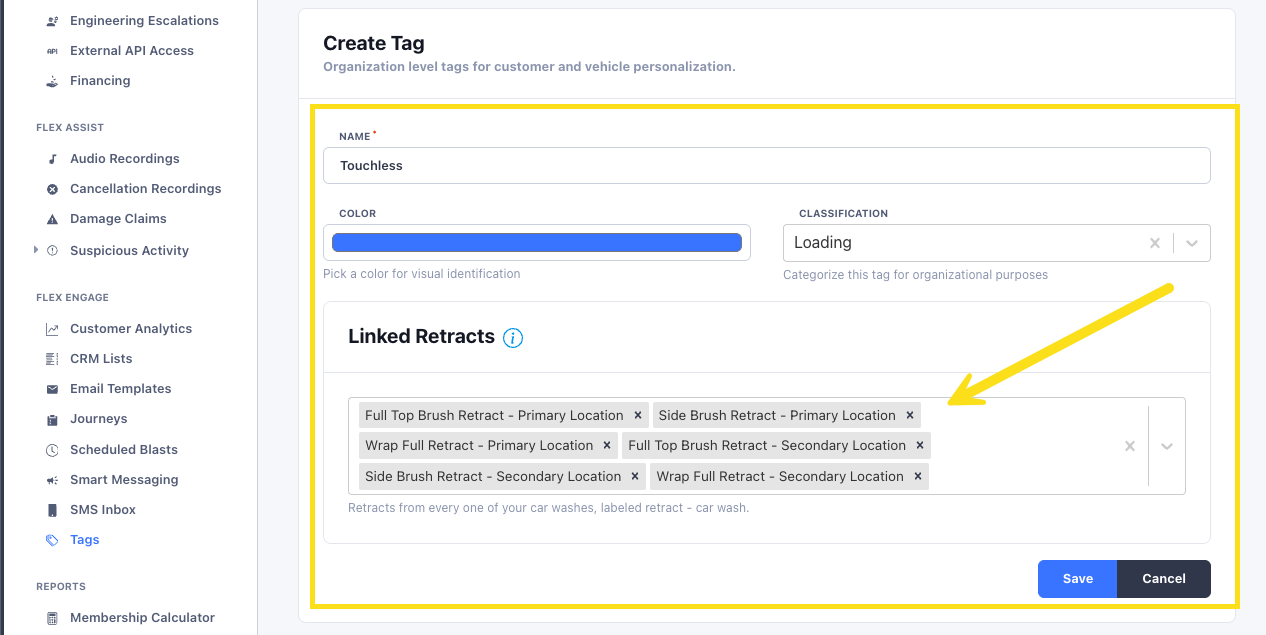
* **Luxury vehicles.** Go touchless. Retract anything the customer would not want contacting their paint or trim.
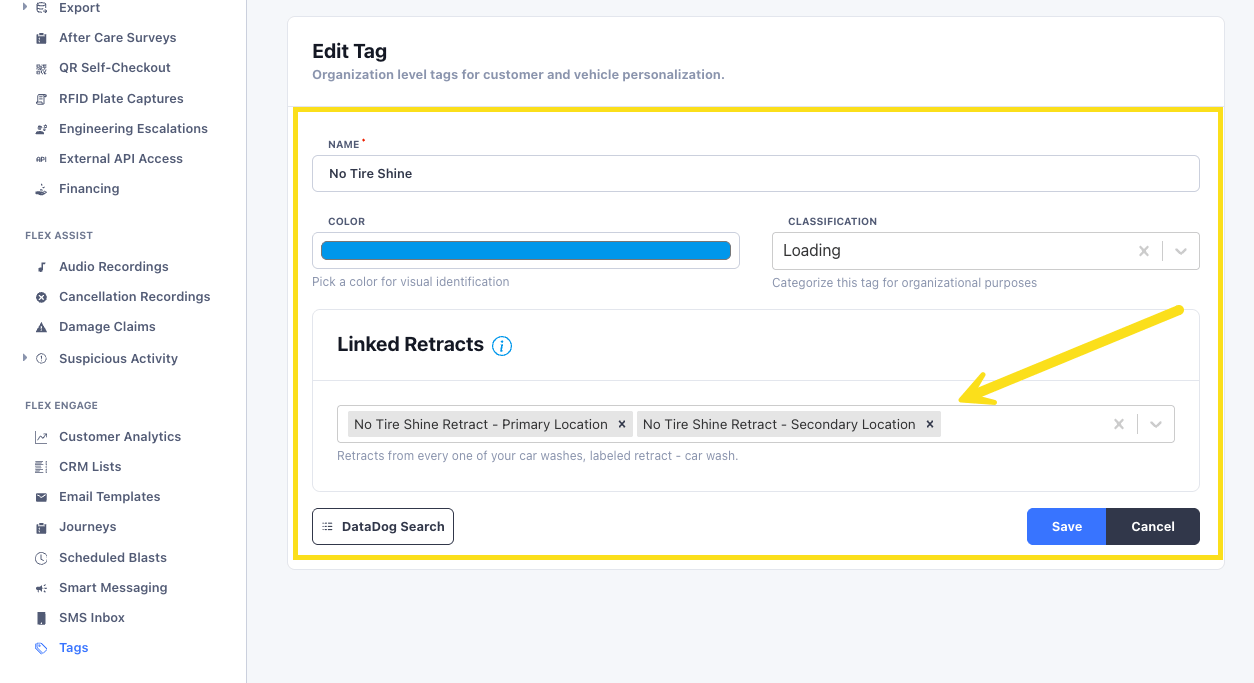
* **One to one.** A tag can apply a single retract when you want to be precise about one piece of equipment. A "No Tire Shine" tag linked only to the tire shine retract at each of your locations.
In the **Flex Engage** section of your dashboard, go to **Tags** and create a new tag in the **Loading** category. Give it a name that describes the retracts it applies, then select those retracts from the list.
The retracts available here were defined during your controller setup. If one is missing or needs renaming, manage them under **Wash Menu > Retracts**.
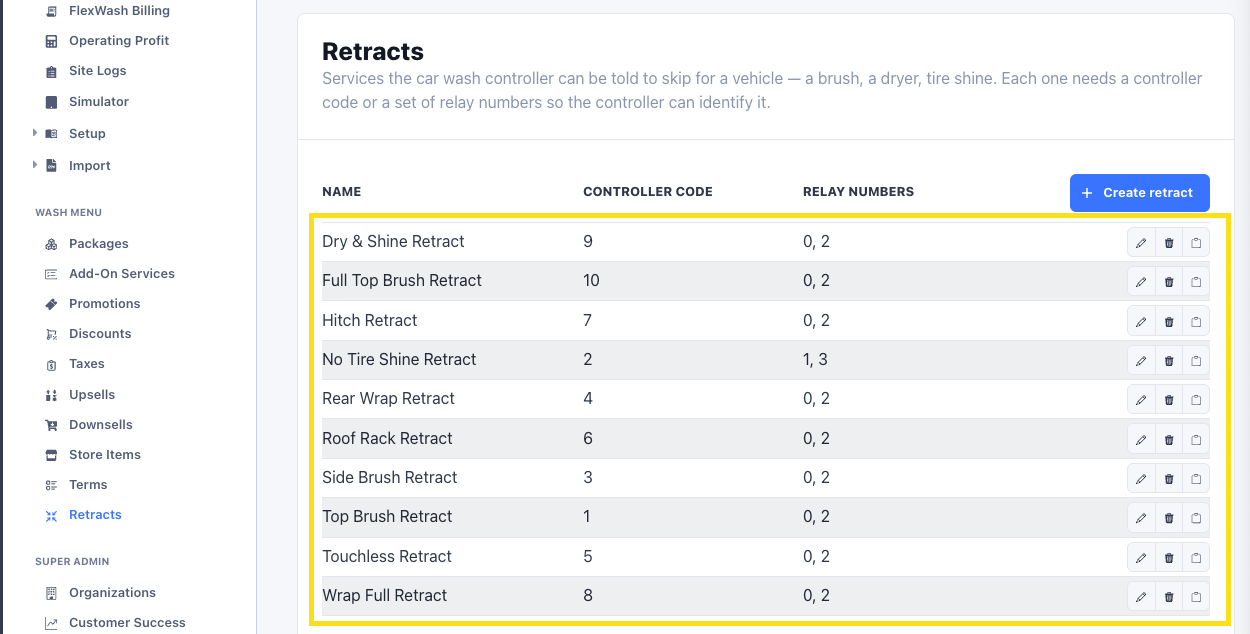 **Grouped Tag**
 **One to one.**
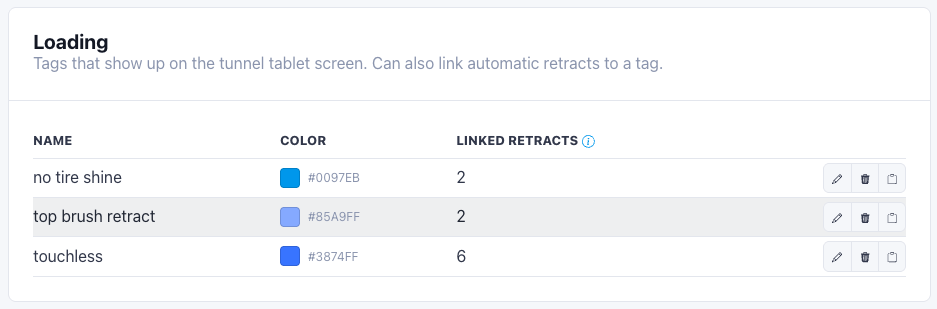
 After saving, the tag appears in the list. You can edit it later to add or remove retracts, rename it, or delete it entirely.
 Use the same tag names across all your sites. Because the tag lives on the vehicle rather than the site, consistent naming is what makes the cross-site behavior obvious to your staff. That consistency starts in the controller, so check your specific retract names outside of FlexWash match across locations before you build the tags.
## Applying and removing retracts
A retract stays on the vehicle until someone takes it off. Once applied it fires on every visit, so there is nothing to re-enable.
Two places to manage it, and both write to the same vehicle:
| Where | Who | Use it when |
| -------------------------------------- | ------------------ | ------------------------------------------------------ |
| Loader screen at the site | Loader | The vehicle is in front of you and needs a retract now |
| Vehicle profile in the admin interface | Attendant or admin | Setting it up ahead of time, or correcting a mistake |
In both places it is the same control. Select the tag to apply the retract, unselect it to remove it.
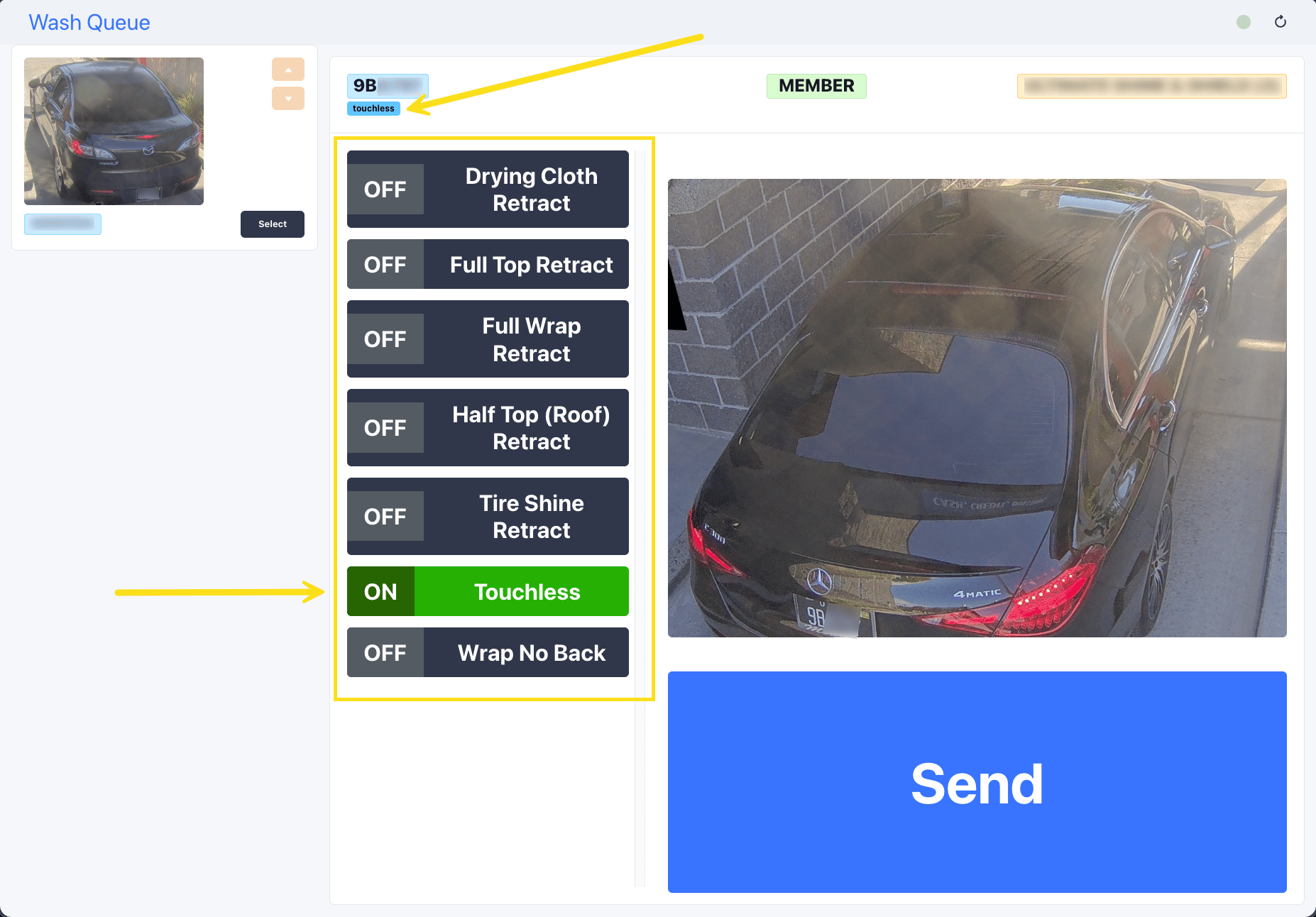
On the **Wash Queue** page, you can see the currently saved tag at the top, below the plate number, check or uncheck the tag on the vehicle. The change saves immediately.
Use the same tag names across all your sites. Because the tag lives on the vehicle rather than the site, consistent naming is what makes the cross-site behavior obvious to your staff. That consistency starts in the controller, so check your specific retract names outside of FlexWash match across locations before you build the tags.
## Applying and removing retracts
A retract stays on the vehicle until someone takes it off. Once applied it fires on every visit, so there is nothing to re-enable.
Two places to manage it, and both write to the same vehicle:
| Where | Who | Use it when |
| -------------------------------------- | ------------------ | ------------------------------------------------------ |
| Loader screen at the site | Loader | The vehicle is in front of you and needs a retract now |
| Vehicle profile in the admin interface | Attendant or admin | Setting it up ahead of time, or correcting a mistake |
In both places it is the same control. Select the tag to apply the retract, unselect it to remove it.
On the **Wash Queue** page, you can see the currently saved tag at the top, below the plate number, check or uncheck the tag on the vehicle. The change saves immediately.
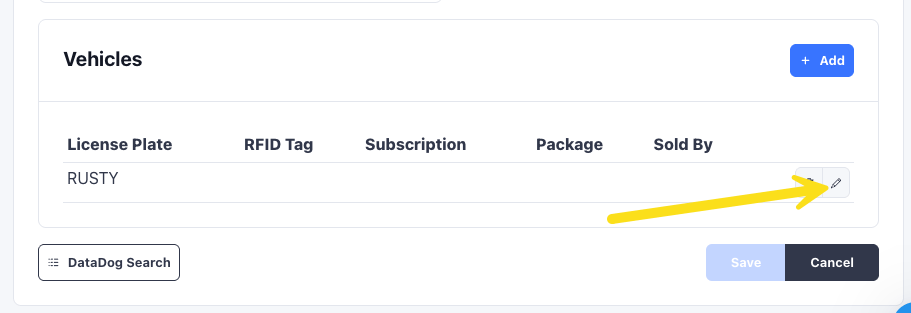
 In the admin interface, open **Customers** in the left sidebar, search for the customer, and open their profile. Under **Vehicles**, click the edit button on the vehicle you want to tag.
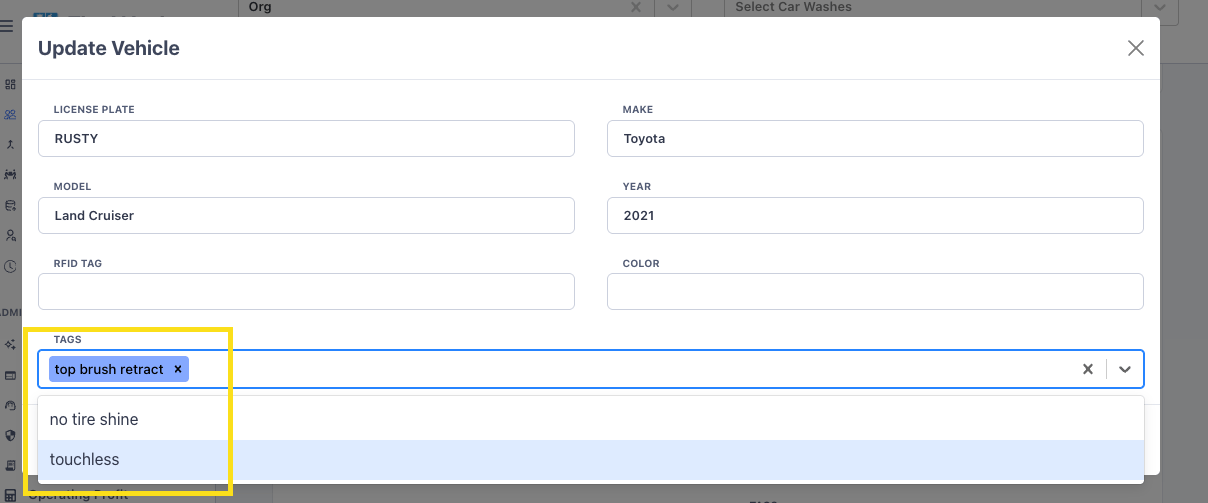
 In the **Tags** box, select the tags you created earlier, then click **Continue**.
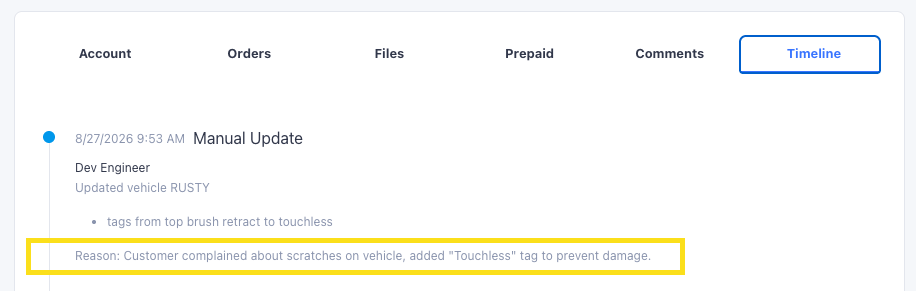
 Leave a comment recording why the tag is being added. Comments are saved to the vehicle's timeline.
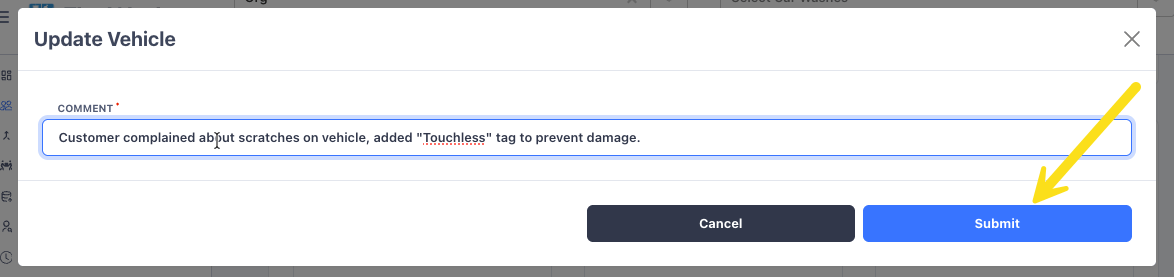 Timeline entries can be referred back to later if there is a dispute about whether a retract was applied correctly along with context.
 A retract that was applied by mistake will keep firing on every visit until it is removed. If a customer reports their vehicle is getting unnecessary retracts, check the vehicle's loading tags first.