> ## Documentation Index
> Fetch the complete documentation index at: https://docs.flexwash.com/llms.txt
> Use this file to discover all available pages before exploring further.
# Add-On Services
> You can set up services that your customers can add up to the wash packages at the moment of the purchase.
## Create Add-on
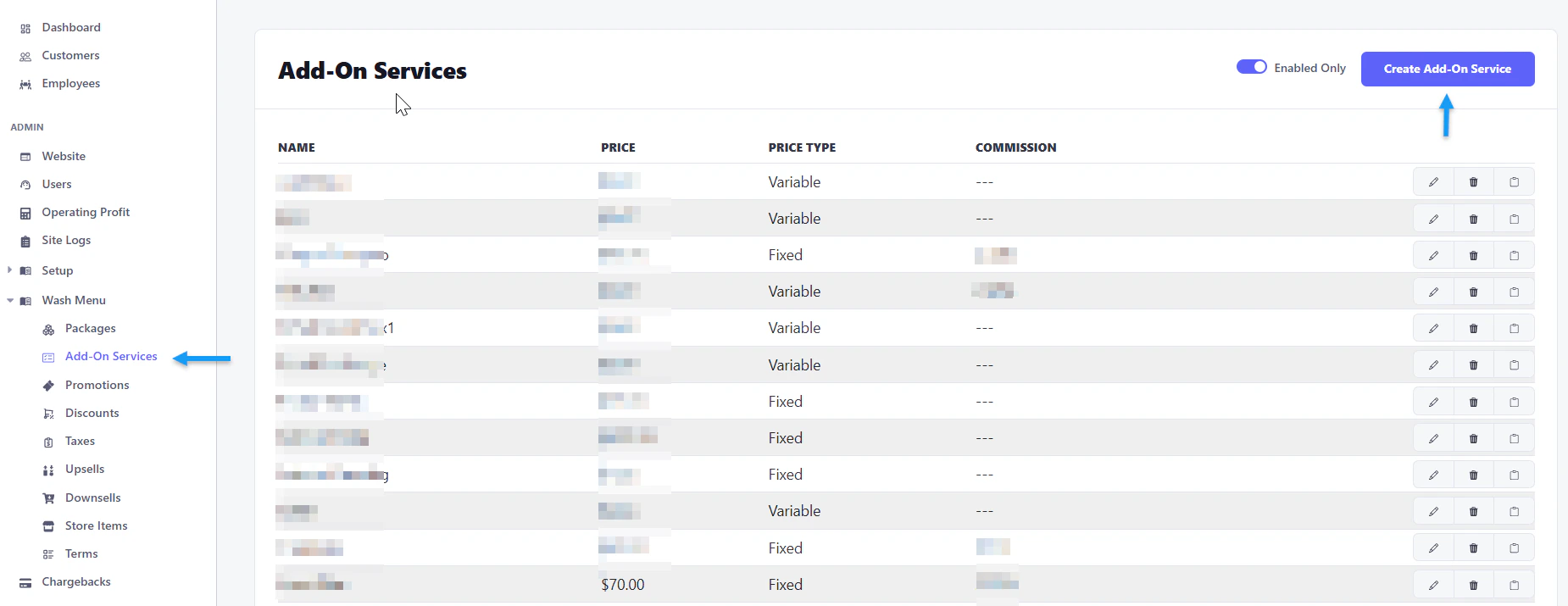
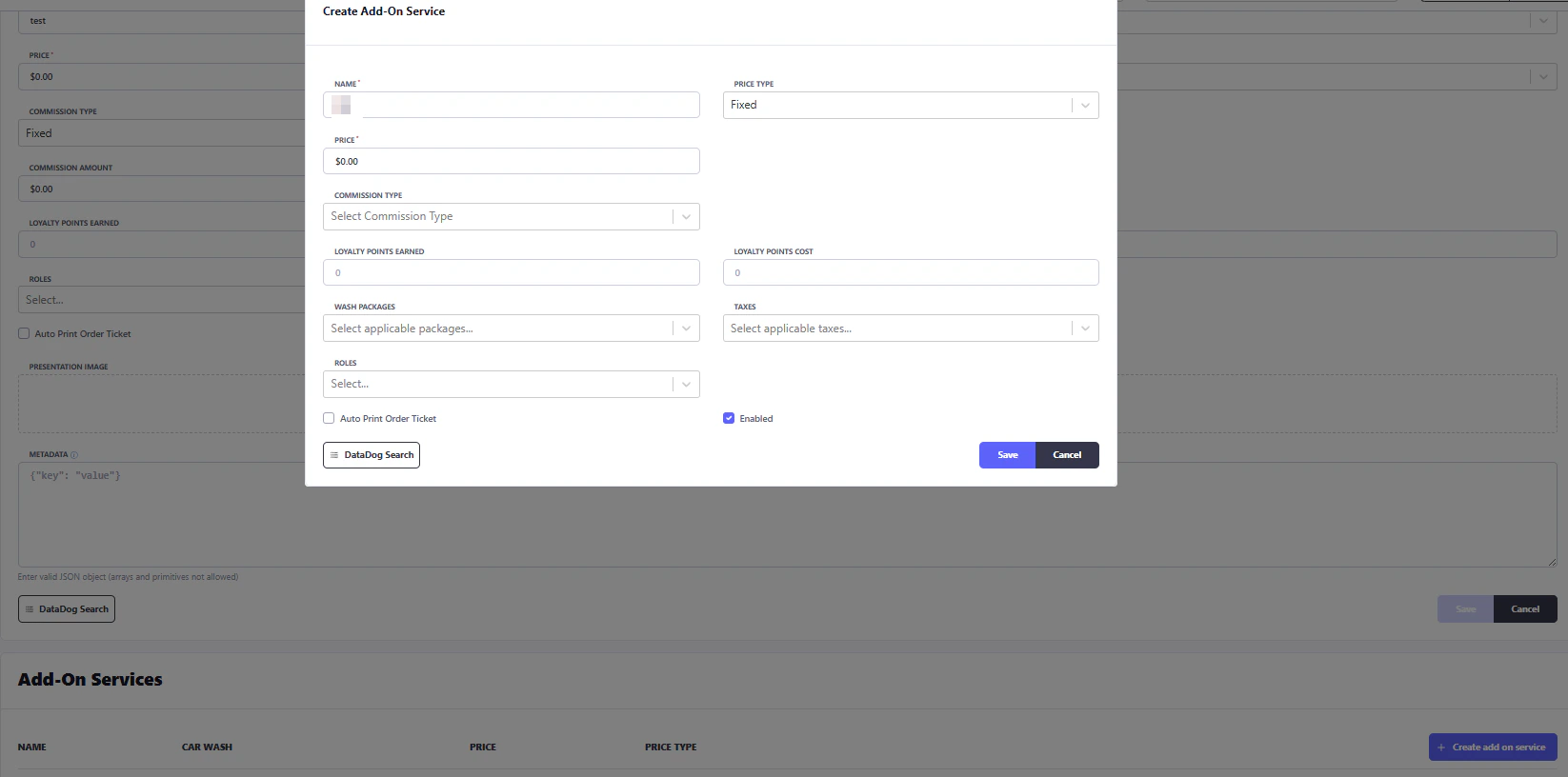
1. Go to Wash Menu Add-On Services > Create Add-On Service. Once all the fields on the template are filled, click save.
 ## Settings
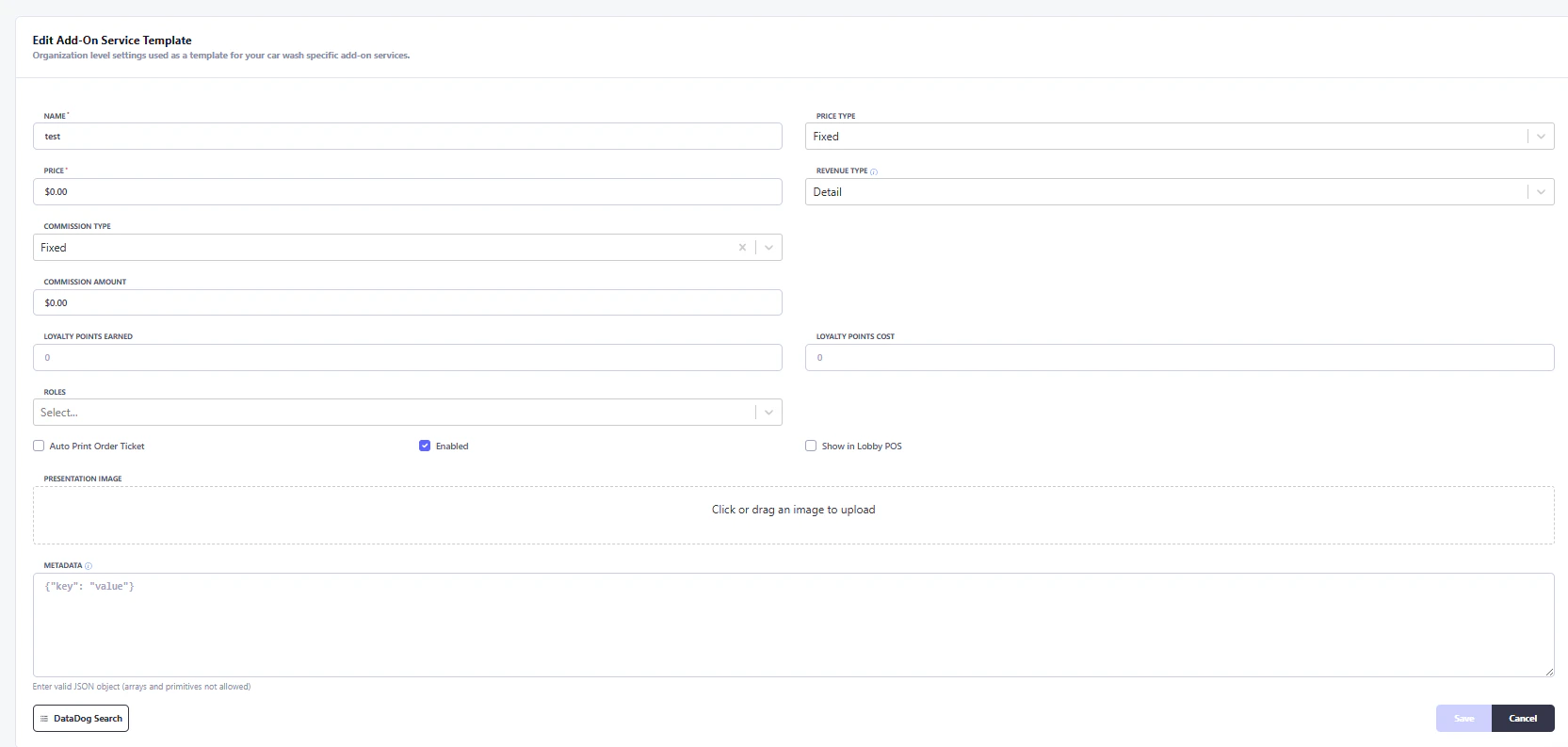
**Name:** Service name displayed on Flexwash devices.
**Price Type:**
* **Fixed:** Set price.
* **Stackable:** Can be added multiple times per wash.
* **Variable:** Employees enter price (e.g., for varying vehicle sizes).
**Revenue Type:** For reports only, what revenue class to report under in FlexWash.
**Commissions Type:** Can be fixed or a percentage.
**Stackable Limit:** Optional limit on how many times a service can be stacked.
**Loyalty points earned/ cost:** Reward customers with points.
**Roles:** Limit service applicability by employee access level.
**Enable:** Check to activate service on Flexwash devices.
You can upload a presentation image to display graphics on the pay tablet. Additionally, the Metadata field allows for the entry of a custom message for the add-on.
## Settings
**Name:** Service name displayed on Flexwash devices.
**Price Type:**
* **Fixed:** Set price.
* **Stackable:** Can be added multiple times per wash.
* **Variable:** Employees enter price (e.g., for varying vehicle sizes).
**Revenue Type:** For reports only, what revenue class to report under in FlexWash.
**Commissions Type:** Can be fixed or a percentage.
**Stackable Limit:** Optional limit on how many times a service can be stacked.
**Loyalty points earned/ cost:** Reward customers with points.
**Roles:** Limit service applicability by employee access level.
**Enable:** Check to activate service on Flexwash devices.
You can upload a presentation image to display graphics on the pay tablet. Additionally, the Metadata field allows for the entry of a custom message for the add-on.
 ## Add-On Services
2. From the Add-on list, edit your created add-on. At the bottom, select "Create Add-on service," then choose "Car Wash."
## Add-On Services
2. From the Add-on list, edit your created add-on. At the bottom, select "Create Add-on service," then choose "Car Wash."
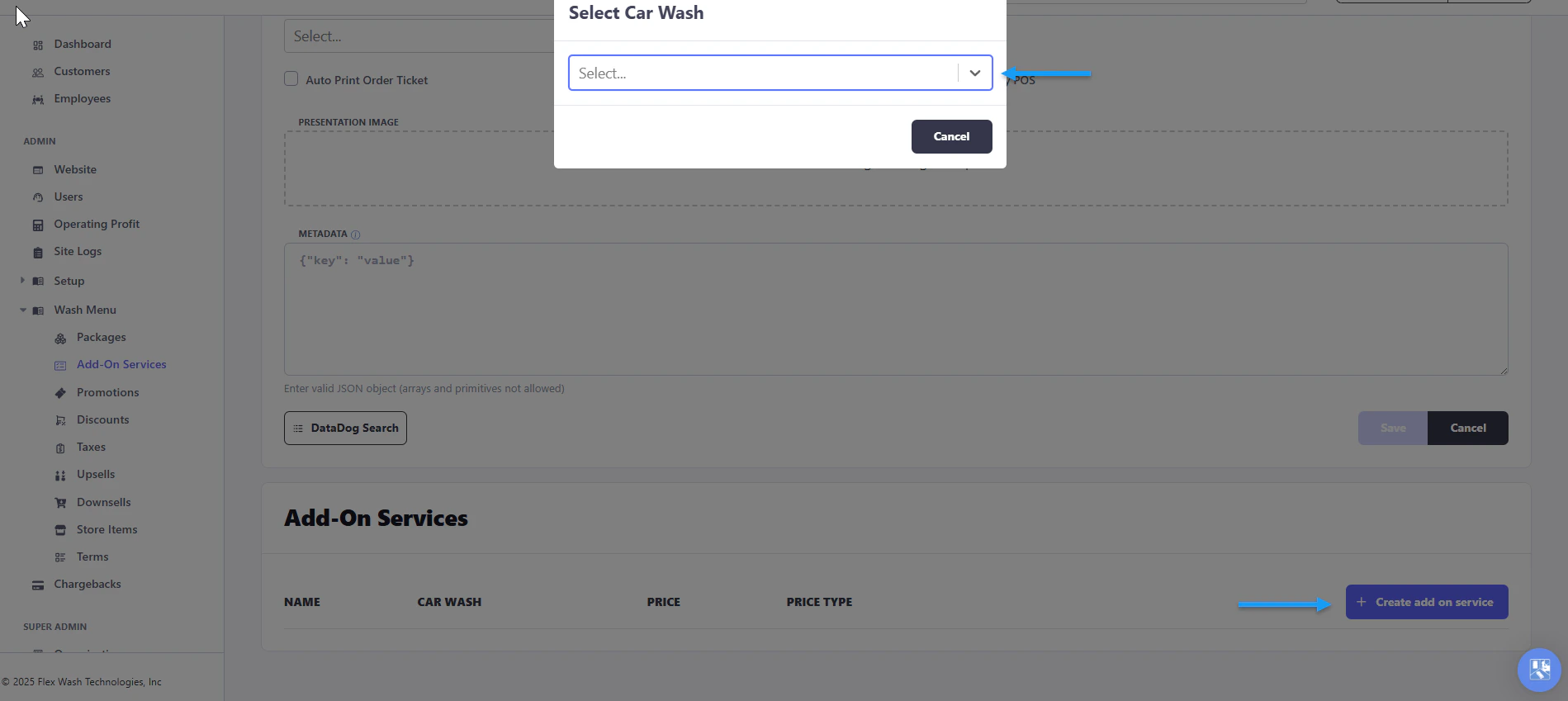 3. Choose a wash package, enter its price, and specify the applicable tax. Verify that all entries match the template, then save.
 ## Setting Display Order
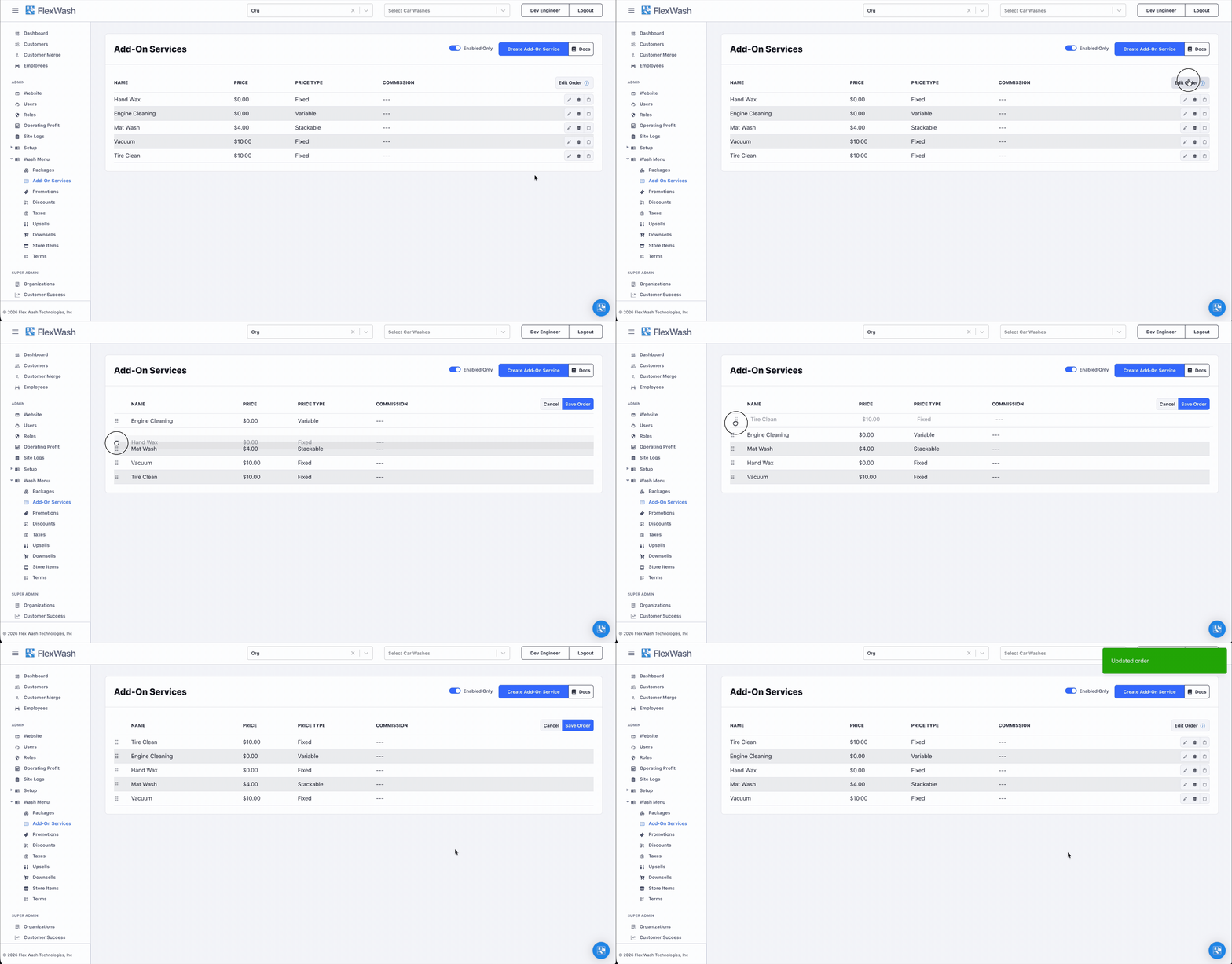
You can customize the order in which add-on services appear on the POS using the Edit Order feature.
By default, add-on services display in the order they were created. To change this:
1. Navigate to **Wash Menu** > **Add-On Services**.
2. Click **Edit Order** in the top-right corner of the table.
3. The table enters reorder mode and a drag handle appears to the left of each row.
4. Drag and drop rows to arrange add-on services in your preferred order.
5. Click **Save Order** to apply your changes, or **Cancel** to discard them.
## Setting Display Order
You can customize the order in which add-on services appear on the POS using the Edit Order feature.
By default, add-on services display in the order they were created. To change this:
1. Navigate to **Wash Menu** > **Add-On Services**.
2. Click **Edit Order** in the top-right corner of the table.
3. The table enters reorder mode and a drag handle appears to the left of each row.
4. Drag and drop rows to arrange add-on services in your preferred order.
5. Click **Save Order** to apply your changes, or **Cancel** to discard them.